
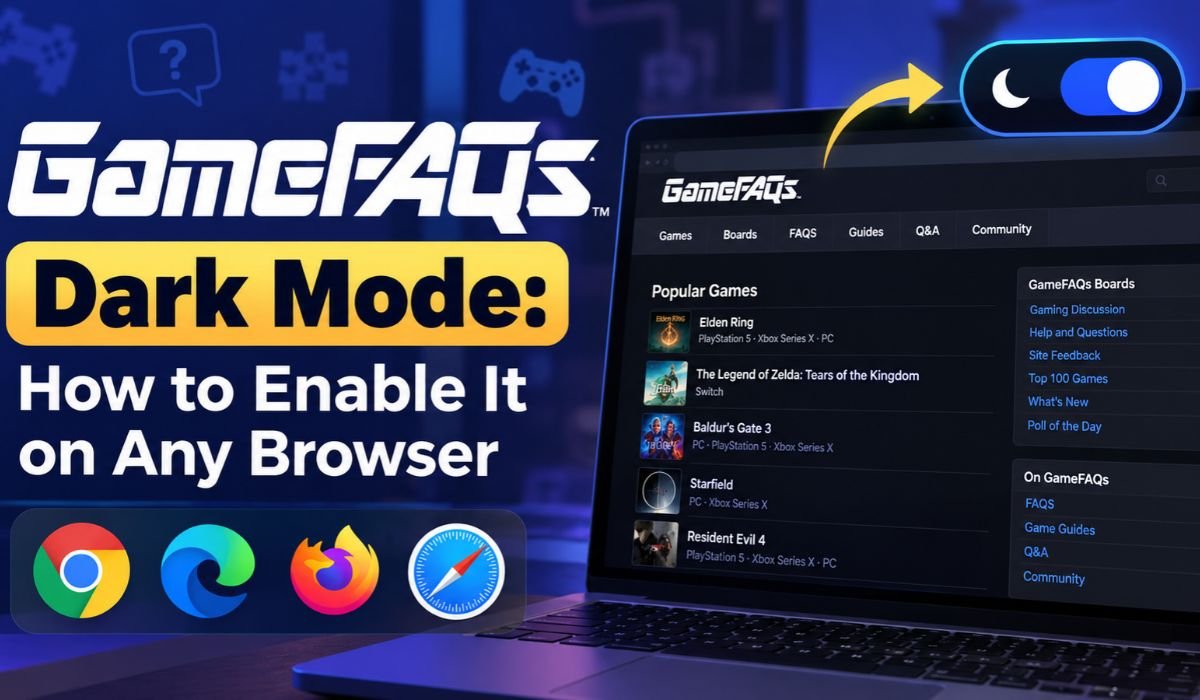
Every gamer knows the feeling. You’re halfway through a difficult level, searching for a hidden item, or trying to defeat a boss that seems impossible to beat. You open GameFAQs, find a helpful walkthrough, and start reading. Before long, you’ve spent more time studying the guide than you expected. If you’re playing late at night, though, the website’s bright background can feel a little harsh.
That’s where GameFAQs Dark Mode comes in. Switching to a darker appearance can make browsing more pleasant, particularly when you’re reading lengthy guides or exploring gaming discussions in a dimly lit room.
GameFAQs has been helping players solve gaming challenges since 1995. Its enormous collection of walkthroughs, cheats, reviews, and community conversations has made it a familiar resource for generations of gamers. Yet finding a reliable dark theme isn’t always as straightforward as changing a browser setting.
The good news is that several browser extensions can help. Whether you use Chrome, Firefox, Microsoft Edge, Safari, or a supported mobile browser, there are ways to give GameFAQs a darker appearance.
This guide explains the available methods in 2026, including how to install dark mode extensions, customize their settings, fix common problems, and choose an option that works for your browsing habits.
GameFAQs Quick Information
| Information | Details |
|---|---|
| Website Name | GameFAQs |
| Founded | 1995 |
| Founder | Jeff Veasey |
| Website Category | Gaming Information And Community |
| Main Purpose | Gaming Guides And Walkthroughs |
| Popular Content | FAQs, Cheats, And Strategies |
| Additional Features | Reviews And Gaming Discussions |
| Community Platform | Message Boards |
| Primary Language | English |
| Website Access | Desktop And Mobile Browsers |
| Native Dark Mode | Current Availability Requires Verification |
| Chrome Dark Mode | Compatible Browser Extensions |
| Firefox Dark Mode | Supported Firefox Add-ons |
| Edge Dark Mode | Compatible Edge Extensions |
| Safari Dark Mode | Supported Safari Extensions |
| Android Options | Compatible Browsers And Extensions |
| iPhone Options | Supported Safari Extensions |
| Popular Dark Mode Tools | Dark Reader And Night Eye |
| Main Benefit | Personalized Browsing Appearance |
| Important Considerations | Readability, Privacy, And Compatibility |
What Is GameFAQs Dark Mode?
GameFAQs Dark Mode is simply a darker version of the website’s usual appearance. Instead of large white backgrounds and dark lettering, a dark theme generally displays charcoal, black, or deep gray backgrounds with lighter text.
The website’s purpose doesn’t change. You can still browse walkthroughs, search for cheats, read reviews, and participate in discussions. What changes is how that information appears on your screen.
There are two ways a website can offer this experience.
The first is a built-in dark theme created by the website’s developers. Because it’s designed for that particular website, it can provide a more consistent appearance across menus, text, and other elements.
The second involves browser extensions. These tools automatically adjust webpage colors, allowing users to apply darker themes even when a website doesn’t provide its own.
For GameFAQs, extensions can be a practical solution. However, automatic color changes aren’t always perfect. Some images, buttons, or text elements may need additional adjustments to remain easy to see.
Does GameFAQs Have a Built-In Dark Mode?
Before downloading anything, it’s worth checking whether GameFAQs already offers the appearance you’re looking for.
Over the years, the website has had different display preferences and appearance options in certain areas. However, those historical features shouldn’t be mistaken for confirmation that a complete, website-wide dark mode is currently available.
The easiest starting point is to sign in to GameFAQs and explore the available account preferences or display settings. If there’s a theme option that suits your needs, you may not need an additional extension.
It’s also important to understand the difference between a browser’s dark theme and a website’s appearance.
For example, switching Windows or macOS to dark mode may change application windows, menus, and browser controls. That doesn’t necessarily mean GameFAQs will adopt the same colors.
Websites decide how they respond to system appearance preferences. When a website doesn’t support the setting you want, an extension can help bridge the gap.
Because website features change, checking the current GameFAQs interface is more reliable than depending on older tutorials.
Why Gamers Prefer GameFAQs Dark Mode
Gaming rarely involves looking at just one screen anymore. Players often move between their games, Discord conversations, video tutorials, browser tabs, and online guides.
When most of those applications have dark backgrounds, opening a bright webpage can feel like an abrupt change.
GameFAQs Dark Mode helps create a more consistent visual experience. Instead of constantly switching between light and dark interfaces, you can keep your browsing environment closer to the appearance of your other gaming tools.
There’s also the reading experience to consider.
Some GameFAQs walkthroughs are incredibly detailed, covering everything from basic controls to hidden achievements and complicated puzzles. Reading these guides can take considerable time.
For people who browse at night, darker backgrounds may feel more comfortable because they reduce the amount of bright space on the screen.
Still, personal preference matters. Some readers find traditional black text on a white background easier to follow, particularly during the day.
The goal isn’t to make every screen dark. It’s to create an environment where finding gaming information feels comfortable and effortless.
How to Enable GameFAQs Dark Mode on Chrome
Google Chrome users have several options for creating a darker GameFAQs appearance, and browser extensions are among the simplest.
Start by opening the Chrome Web Store. Search for a recognized dark mode extension, such as Dark Reader or Night Eye, and open its official listing.
Before installing anything, take a moment to review the developer information, permissions, and recent updates. Extensions that change webpage colors usually need permission to access website content.
Once you’re satisfied, install the extension and confirm the browser’s permission request.
Now open GameFAQs. Depending on the extension, the website may automatically appear darker. If nothing changes, click the extension’s icon in Chrome’s toolbar and make sure it’s enabled.
Most established dark mode tools provide settings for brightness, contrast, and individual websites.
One detail often causes confusion: Chrome’s built-in dark appearance mainly changes the browser interface. It doesn’t guarantee that every webpage will switch to dark mode.
That’s why an extension designed specifically for webpage colors is usually the more dependable option.
How to Enable GameFAQs Dark Mode on Firefox
Firefox makes it relatively easy to personalize website appearance through add-ons.
Open Mozilla’s official Firefox Add-ons marketplace and search for a compatible dark mode tool. Dark Reader is a familiar option, although other extensions may also be available.
After reviewing the permissions, install the add-on and visit GameFAQs.
If the website doesn’t immediately change, open Firefox’s extensions menu and activate the tool.
Dark Reader offers controls for adjusting brightness, contrast, and website-specific behavior. These settings can be especially useful when a gaming walkthrough contains a mixture of text, screenshots, and navigation elements.
Firefox also has its own browser themes. However, changing the browser’s appearance doesn’t always change the webpages displayed inside it.
If GameFAQs looks unusual after enabling an extension, try adjusting the rendering settings or returning to the extension’s default configuration.
A few small adjustments can often make the difference between a dark page that merely looks attractive and one that’s genuinely comfortable to read.
How to Enable GameFAQs Dark Mode on Microsoft Edge
Microsoft Edge users can achieve a similar result without making complicated browser changes.
Begin by visiting the Edge Add-ons marketplace and looking for a reputable dark mode extension. Dark Reader and Night Eye offer compatible options.
Choose the extension that best matches your preferences, review its permissions, and complete the installation.
Afterward, open GameFAQs and check whether the website’s appearance has changed. If necessary, activate the extension through Edge’s toolbar.
Many dark mode extensions let you customize individual websites. That means you can keep GameFAQs dark without forcing the same appearance on every page you visit.
Edge also includes its own dark appearance setting, but this primarily affects browser controls and menus.
For users who want the actual GameFAQs content to appear darker, a compatible webpage extension is generally the more useful approach.
How to Enable GameFAQs Dark Mode on Safari
Safari users aren’t left out, although the process differs slightly from Chrome and Firefox.
On a Mac, open Safari’s settings and navigate to the Extensions section. You’ll need a compatible extension installed through Apple’s supported distribution channels.
Once installed, enable the extension and grant the necessary permissions for GameFAQs.
Then open the website and check how the darker appearance looks.
Both Dark Reader and Night Eye offer Safari-compatible products, although their features, availability, and pricing may differ from versions offered for other browsers.
Another detail worth remembering is that macOS Dark Mode doesn’t automatically change every website. Safari can display a dark browser interface while individual webpages continue using bright backgrounds.
If the extension changes certain GameFAQs elements incorrectly, explore its customization settings. You can also disable it for the website whenever necessary.
GameFAQs Dark Mode on Android and iPhone
You don’t have to be sitting at a computer to use GameFAQs. Many players check walkthroughs on their phones while playing on a console or another screen.
Fortunately, some mobile browsers offer ways to create a darker browsing experience.
On Android, Firefox supports compatible extensions, including Dark Reader. Microsoft Edge for Android also supports selected extensions, although the available options may vary.
To get started, open a supported browser, find its extension settings, and install a compatible dark mode tool. Once enabled, visit GameFAQs and adjust the appearance if needed.
The situation is slightly different on iPhone and iPad.
Safari supports certain extensions that can modify website colors. Dark Reader offers a version designed for Apple’s Safari ecosystem.
However, mobile Chrome doesn’t provide the same extension installation experience as desktop Chrome.
Also, switching your phone’s system appearance to dark mode may change browser menus without affecting GameFAQs itself.
For mobile users, browser compatibility is the most important factor when choosing a dark mode solution.
Using Night Eye for GameFAQs Dark Mode
Night Eye is a browser extension designed to turn bright websites into darker versions while offering additional appearance controls.
Once you’ve installed it through a supported browser’s official extension marketplace, open GameFAQs and activate its dark appearance.
Night Eye provides different ways to adjust how websites look. Its Dark Mode changes webpage colors, while Filtered Mode keeps more of the original design and allows certain visual adjustments.
Depending on the browser and version, users can customize brightness, contrast, and color warmth.
These controls can be helpful when reading GameFAQs walkthroughs that contain lengthy text passages alongside screenshots and interface elements.
Night Eye also provides website-specific settings, allowing users to customize GameFAQs without necessarily changing their entire browsing experience.
The service offers free and paid options, so it’s worth checking the current plan details before choosing it.
For gamers who prefer darker interfaces across several websites, Night Eye can be a convenient option.
Using Dark Reader as an Alternative
Dark Reader is another popular choice for users who want more control over website appearance.
Unlike a simple browser theme, Dark Reader changes the colors of webpage content. It’s also open-source, meaning its software code is publicly available for examination.
After installing the extension, open GameFAQs and enable its dark theme.
Dark Reader provides settings for brightness, contrast, and other visual adjustments. You can also control which websites use the extension.
This flexibility is useful if you want GameFAQs to appear dark while keeping other websites in their original colors.
Another advantage is the availability of different rendering approaches. If one method produces unusual colors or formatting, changing the rendering settings may improve the result.
When comparing Dark Reader with Night Eye, consider browser compatibility, customization features, pricing, and ease of use.
Neither tool guarantees perfect results on every webpage, but both provide practical ways to personalize GameFAQs.
How to Customize GameFAQs Dark Mode
Getting a dark theme working is one thing. Making it comfortable enough for everyday browsing is another.
Start with brightness. A screen that looks fine during the afternoon may feel too bright late at night, even with a dark background.
Adjust your display until the text is easy to read without making the screen unnecessarily intense.
Contrast matters just as much.
Very bright text against a completely black background can sometimes feel harsh, particularly during long reading sessions. Softer dark backgrounds may provide a more balanced experience.
You should also consider text size. GameFAQs contains extensive written guides, and small lettering can make lengthy passages difficult to follow.
Browser zoom is a simple way to improve readability without changing the website itself.
If screenshots, icons, or other visual elements look strange, check whether your extension provides image-handling options or alternative rendering modes.
Some extensions also offer automatic scheduling or system-theme synchronization.
With a little experimentation, you can create a GameFAQs appearance that works comfortably throughout the day.
Benefits of GameFAQs Dark Mode
The biggest advantage of GameFAQs Dark Mode is the freedom to choose how the website looks.
For some people, a darker interface feels more comfortable in low-light environments. Reducing large bright areas can make nighttime browsing less visually distracting.
It can also create a consistent appearance across gaming platforms, communication applications, and websites.
There may be a power-saving benefit on certain devices, too.
OLED displays can use less energy when showing darker pixels. However, actual battery savings depend on screen technology, brightness, and the content being displayed. Traditional LCD screens generally don’t receive the same pixel-level power benefit.
It’s equally important to understand what dark mode cannot do.
A dark theme isn’t a medical treatment, and there’s no reliable basis for claiming that it prevents eye disease, cures insomnia, or eliminates digital eye strain.
Good lighting, sensible screen brightness, readable text, and regular breaks remain important.
Think of dark mode as a useful display preference rather than a guaranteed health solution.
GameFAQs Dark Mode vs. Light Mode
Is dark mode actually better than light mode? The answer depends on your environment and how you prefer to read.
Dark mode is often appealing at night because it reduces the brightness of large webpage backgrounds. It may also feel more natural when you’re switching between dark-themed gaming applications.
Light mode has its advantages, though.
In brightly lit rooms, dark text against a light background can be easier to read. Some people also find this combination more comfortable when working through long passages.
Individual visual needs make a difference as well. Certain users may find light text on dark backgrounds harder to focus on, particularly when the text is small.
Rather than treating one appearance as the winner, try both under your usual browsing conditions.
You might prefer light mode while researching a game during the afternoon and dark mode when checking a walkthrough late at night.
The best choice is whichever helps you read clearly and navigate GameFAQs comfortably.
GameFAQs Dark Mode Not Working? Common Fixes
Browser extensions usually work with little effort, but occasional problems are normal.
You might open GameFAQs and discover that the background is still white. In other cases, the page may appear dark while certain buttons, images, or text elements look unusual.
Start with the simplest explanation: make sure the extension is enabled.
Open your browser’s extension menu and confirm that the tool has permission to operate on GameFAQs.
Some extensions also maintain lists of websites where dark mode is disabled. Check that GameFAQs hasn’t been added to an exclusion list.
If you installed the extension while the website was already open, refreshing the page may help.
Unreadable text or distorted images can indicate a problem with the extension’s color-processing method. Try adjusting contrast, changing the rendering mode, or restoring the default settings.
Another common issue involves overlapping extensions.
If two tools are attempting to modify webpage colors simultaneously, they may interfere with one another. Disable one and test the website again.
Finally, keep your browser and extensions updated. Website design changes can occasionally affect compatibility, and extension updates may address these problems.
Is GameFAQs Dark Mode Safe?
Dark mode extensions can make browsing more convenient, but it’s worth paying attention to privacy.
To change webpage colors, many extensions need permission to read and modify website content. Depending on the permissions granted, that access can be extensive.
Before installing a tool, look at who developed it, what permissions it requests, and whether it receives regular updates.
Reviewing the privacy policy can also help you understand how the extension handles website information.
Dark Reader’s open-source development provides an opportunity for public code inspection. Night Eye also publishes information about its functionality and handling of website content.
Still, neither popularity nor open-source status automatically guarantees complete security.
Install extensions through official browser marketplaces, avoid suspicious download sources, and remove tools you no longer need.
A good extension should improve your GameFAQs experience without creating unnecessary privacy concerns.
Tips for a Better GameFAQs Browsing Experience
Dark mode can improve the appearance of GameFAQs, but a few additional habits can make the website even easier to use.
First, pay attention to screen brightness. Matching your display to the surrounding light is often more useful than simply choosing the darkest possible background.
Text size also matters.
Some GameFAQs walkthroughs contain extensive instructions, detailed item descriptions, and complicated strategies. Increasing browser zoom can make these guides easier to follow.
If you’re spending a long time reading, take regular breaks and give your eyes an opportunity to rest.
For players who frequently consult walkthroughs during gameplay, keeping GameFAQs open in a separate window or on another screen can be convenient.
You can also bookmark useful guides or keep important sections readily accessible, reducing the time spent searching through lengthy pages.
Above all, choose settings that preserve the readability of text, screenshots, and navigation elements.
A visually attractive theme isn’t much use if it makes the information harder to understand.
Final Thoughts
GameFAQs has remained a valuable resource for gamers because it makes detailed gaming knowledge easy to find. Whether you’re revisiting an old favorite, solving a difficult puzzle, or exploring community discussions, the website offers information that can make your gaming experience more enjoyable.
GameFAQs Dark Mode gives you another way to personalize that experience.
Chrome, Firefox, Edge, and Safari users can explore extensions such as Dark Reader and Night Eye, while supported mobile browsers provide additional options. The right choice depends on your device, browser compatibility, and the level of customization you want.
Before installing anything, check the website’s available appearance settings and review extension permissions. Once you’ve selected a tool, experiment with brightness, contrast, and text size until the pages feel comfortable.
There’s no single display setting that works perfectly for everyone. Some gamers prefer dark backgrounds during late-night sessions, while others find light mode easier to read.
What matters most is keeping GameFAQs clear, accessible, and enjoyable to use.
After all, when you’re searching for the answer to a difficult gaming challenge, the last thing you want is a website appearance that gets in your way.
FAQs About GameFAQs Dark Mode
Does GameFAQs Have a Built-In Dark Mode?
GameFAQs has offered appearance preferences in certain areas over the years, but a complete native dark mode covering every page hasn’t been confirmed for 2026. Check the website’s current account preferences and display settings for available options. If you can’t find a suitable theme, a compatible browser extension may be the easiest alternative.
Is GameFAQs Dark Mode Free?
You can use certain dark mode extensions without paying. Dark Reader is available free of charge on supported Chrome, Firefox, and Edge versions, while its Safari version is paid. Night Eye offers free and paid plans with different limitations. Pricing and available features may change, so review the current extension listing before installing.
Can I Enable GameFAQs Dark Mode on Chrome?
Yes. Desktop Chrome users can install compatible extensions such as Dark Reader or Night Eye through the Chrome Web Store. Once installed, these tools can change GameFAQs’ webpage colors and provide customization options for brightness and contrast.
Does GameFAQs Dark Mode Work on Firefox?
Firefox supports dark mode add-ons, including Dark Reader. After installing a compatible extension through Mozilla’s official marketplace, you can activate it for GameFAQs and adjust the appearance to suit your preferences.
Can I Use GameFAQs Dark Mode on Mobile?
Yes, provided your browser supports a suitable dark mode feature or extension. Firefox and Microsoft Edge on Android support selected extensions, while Safari on iPhone and iPad supports compatible appearance-changing extensions. The exact options depend on your device, browser, and operating system version.
Why Is GameFAQs Dark Mode Not Working?
The extension may be disabled, missing website permissions, or conflicting with another browser tool. Check the extension settings, refresh GameFAQs, and confirm that the website hasn’t been excluded. Updating your browser or changing the extension’s rendering method may also solve the problem.
Is GameFAQs Dark Mode Better for Your Eyes?
Dark mode may feel more comfortable for some users in dim environments because it reduces large bright areas. However, it doesn’t automatically prevent eye strain. Reading comfort depends on lighting, contrast, brightness, text size, and individual visual preferences. Regular breaks and appropriate screen settings remain important.
How Do I Turn Off GameFAQs Dark Mode?
If you’re using a browser extension, open its toolbar menu and disable dark mode for GameFAQs. You can also turn off or uninstall the extension completely. If you’re using a built-in website appearance setting, return to the relevant preferences and restore the original theme.
Learn more and explore exciting content on: OpenGoon Explained: AI Features, Pricing, and How It Works
[…] Learn more and explore exciting content on: GameFAQs Dark Mode: How to Enable It on Any Browser […]